Use the filters or search box to jump straight to GTA, Pixar, SpongeBob, DreamWorks, cinematic, and environment prompts.
9 prompts
Blank Preview
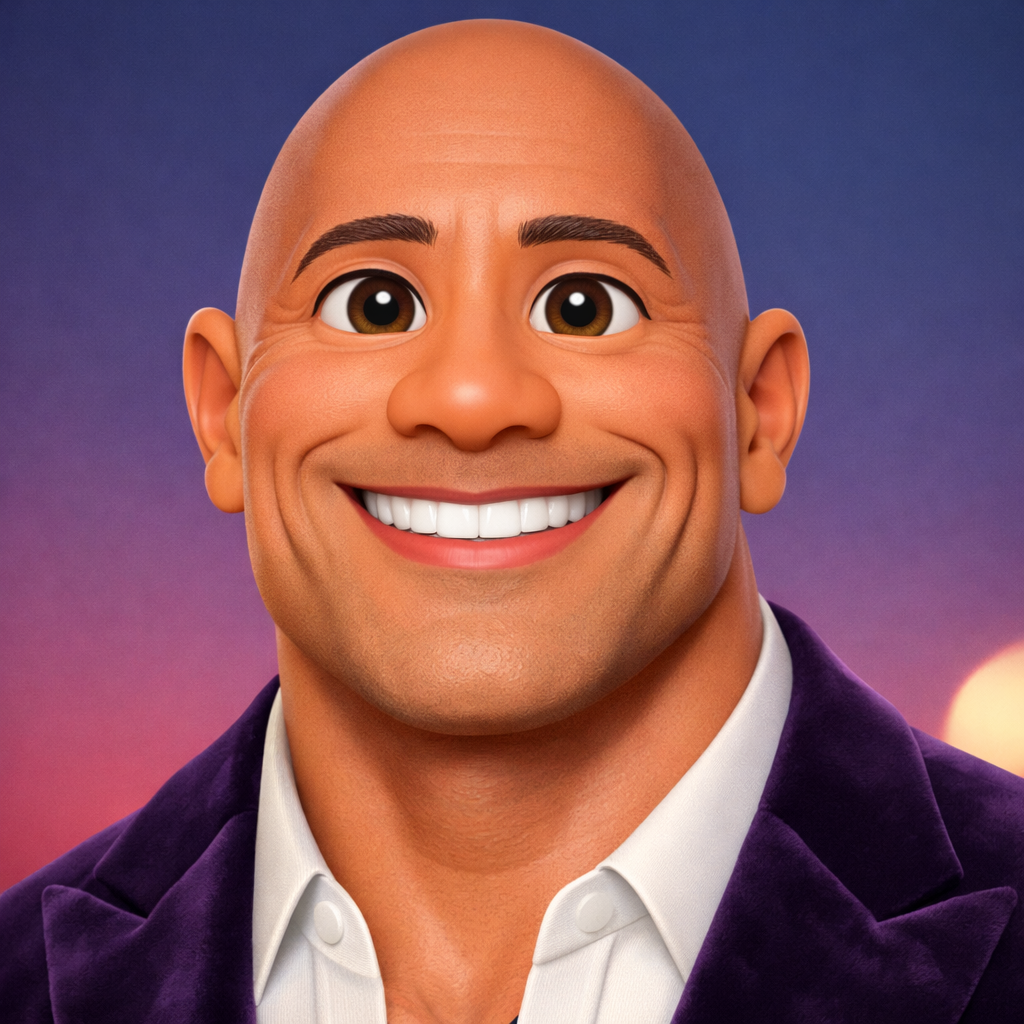
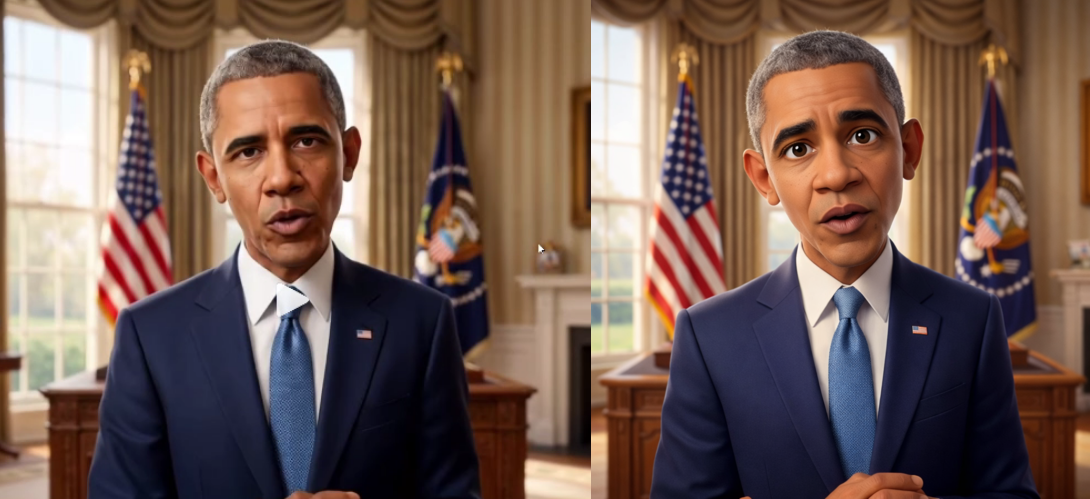
This is the cleaner, stronger Pixar-style version with better cinematic direction, softer rendering, and more storytelling in the final scene.
Generate a stylized cinematic 3D character render in Pixar-inspired style of this exact image. Maintain his face, expression, hairstyle, and clothing details accurately while slightly enhancing features with smooth skin, expressive eyes, and clean proportions. Use high-quality lighting, soft shadows, and detailed textures. Place him in a cinematic environment with strong storytelling elements and depth of field. Render in 1:1 square format.
Quick tips
Start with a clear photo where the face, hair, and clothing are easy to read. This prompt is strongest when the character is framed from the chest up or waist up and the expression is visible.
Paste the prompt first as-is, then add one short sentence at the end if you want a specific setting, like a cozy bedroom, toy shop, school hallway, or city street. Keeping your extra note short helps the Pixar look stay clean instead of overloaded.
If the result stops looking like the real person, add a short correction such as "keep facial likeness very close to the source image" or "do not redesign the outfit." This is the best option when you want the most polished Pixar-style result before trying the environment-heavy versions.
Blank Preview
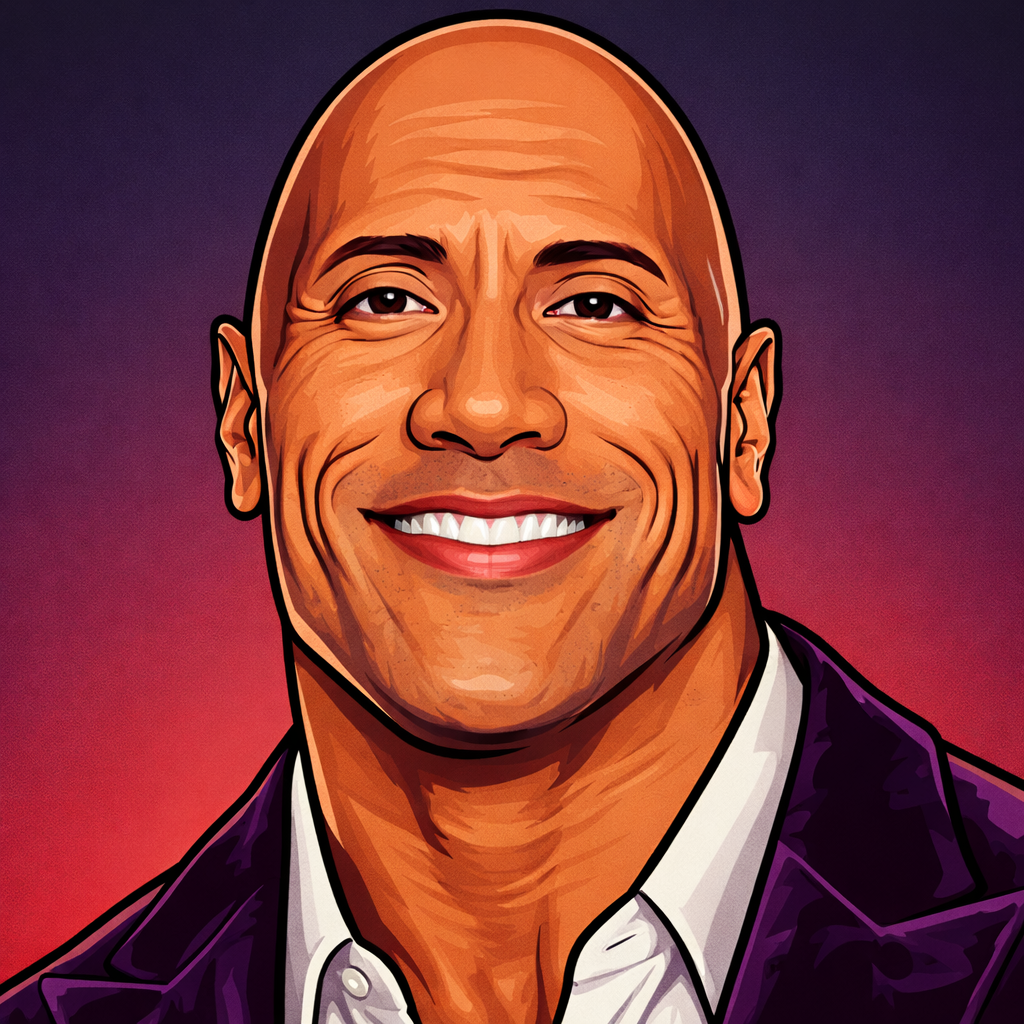
Made for classic San Andreas promo-art vibes with bold outlines, high-contrast shading, and a close-up illustrated portrait.
Generate me a GTA: San Andreas style 2D illustrated portrait of this exact image. Maintain his face, expression, and clothing details accurately. Use bold outlines, stylized realism, and high-contrast shading consistent with classic Grand Theft Auto: San Andreas promotional artwork. Keep the composition as a close-up portrait and generate it in a 1:1 square size.
Quick tips
Use a head-and-shoulders photo with a strong face angle, readable expression, and visible clothing details. This one is built for a close-up promo-art look, so tight portraits work better than far-away shots.
Leave the prompt alone if you want the classic San Andreas poster vibe. If you want more personality, add a short note after it like "use a sunset street background" or "add bold orange and teal city lighting," but keep the portrait framing close.
If the generator starts making the face too generic, reinforce the identity with a phrase like "preserve exact facial structure and expression." It is best for clean portraits, not full action scenes.
Blank Preview
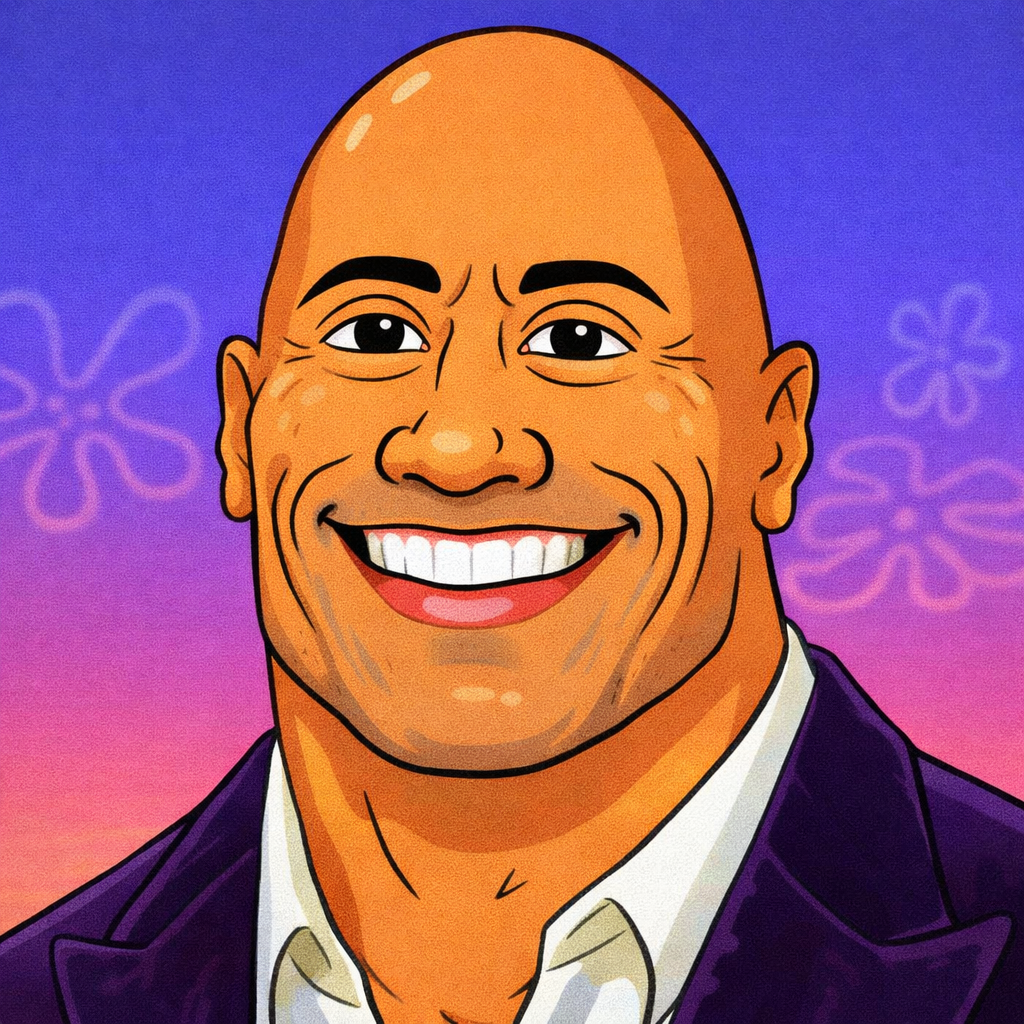
A simple cartoon-conversion prompt focused on keeping the same face and clothes while shifting the image into a SpongeBob-style 2D look.
Generate me a 2d SpongeBob style image of this EXACT IMAGE. Maintain his face and clothes. Generate it in 1:1 square size.
Quick tips
This prompt works best when the source image has simple readable clothing colors and a clear front-facing or three-quarter pose. Busy backgrounds are usually fine, because the style shift is simple and cartoon-heavy.
Copy the prompt as-is when you want a fast funny result. If you want the character to stay more recognizable, add one short instruction like "keep the same pose and proportions recognizable" or "keep clothing colors identical to the original."
Use this prompt when you want a flatter 2D cartoon look instead of a polished 3D movie render. It is a good choice for playful edits, profile pictures, and lighter social posts.
Blank Preview
A shorter Toy Story-style version when you want a direct 3D animated conversion without the extra cinematic notes.
Generate me a 3d Toy Story style image of this EXACT IMAGE. Maintain his face and clothes. Generate it in 1:1 square size
Quick tips
Pick a photo where the outfit, hair, and pose are easy to see. The Toy Story look reads best when the subject is not too tiny in frame and the generator has enough detail to turn the clothes into clean animated materials.
You can keep the prompt simple, or add a short environment note like "inside a toy store" or "in a sunny neighborhood street." Short additions work better than long paragraphs, because the core style is already doing most of the work.
If the result becomes too exaggerated or baby-like, add "keep age and facial proportions close to the original person." This is a good middle-ground prompt when you want 3D animation without the heavier cinematic wording.
Blank Preview
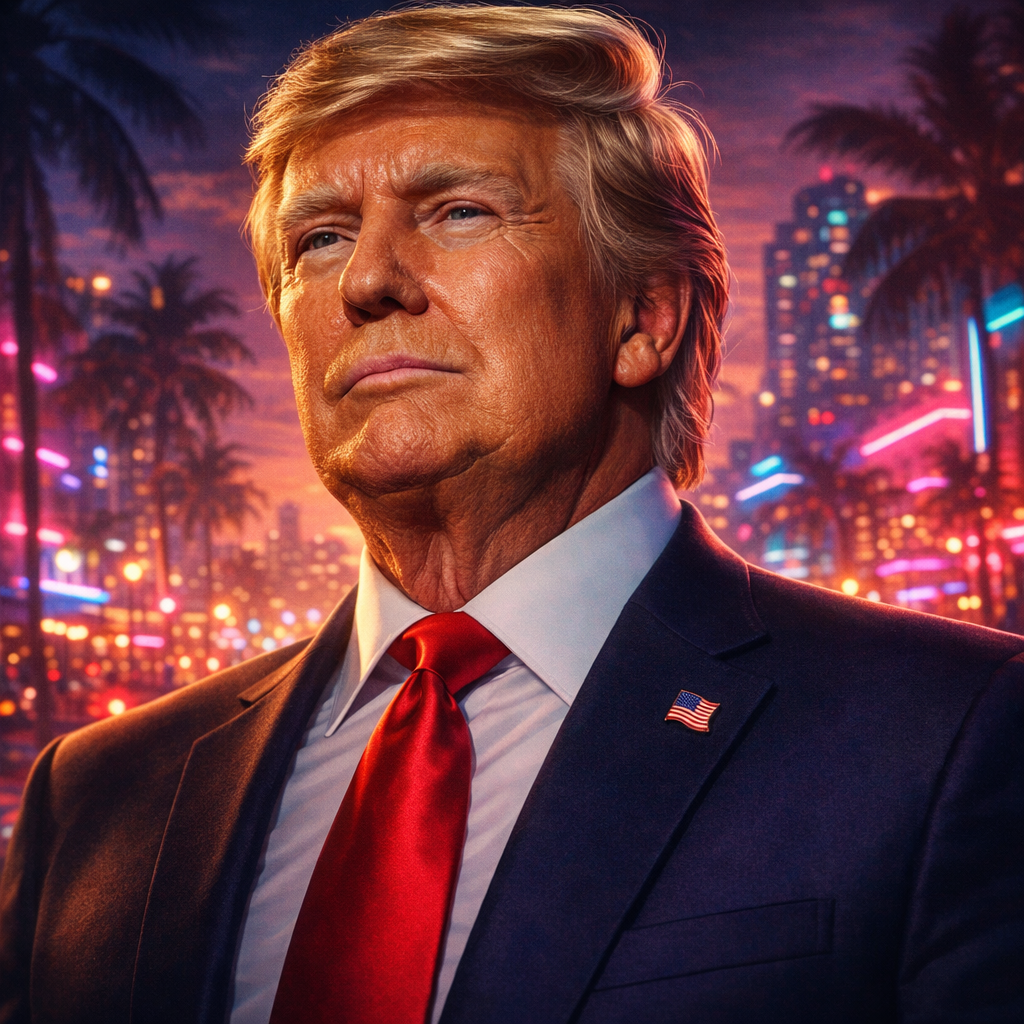
For next-gen realism, neon highlights, Miami-style atmosphere, dramatic lighting, and a modern GTA VI look.
Generate me a GTA VI cinematic ultra-realistic 3D character render of this exact image. Maintain his face, expression, and clothing details accurately. Use next-gen realistic proportions, highly detailed textures, and dramatic cinematic lighting with neon-style highlights and depth of field consistent with modern Grand Theft Auto VI visuals. Body standing up background scene Miami Florida Keep the composition as a close-up portrait and generate it in a 1:1 square size.
Quick tips
This prompt needs a source photo with strong clothing detail, because it is trying to create a realistic next-gen render instead of a simplified cartoon. A medium shot or full-body image works better here than a super-tight face crop.
The prompt already asks for a standing body and a Miami scene, so use it when that direction fits what you want. If your source image is only a close-up, you can still use it, but results will usually improve if the original photo shows more of the outfit and body posture.
If you want the render to stay closer to the real person, add "preserve exact likeness" at the end. If you want a stronger GTA atmosphere, add a short detail like "nighttime neon boulevard" or "Vice City style beachfront lights."
Blank Preview
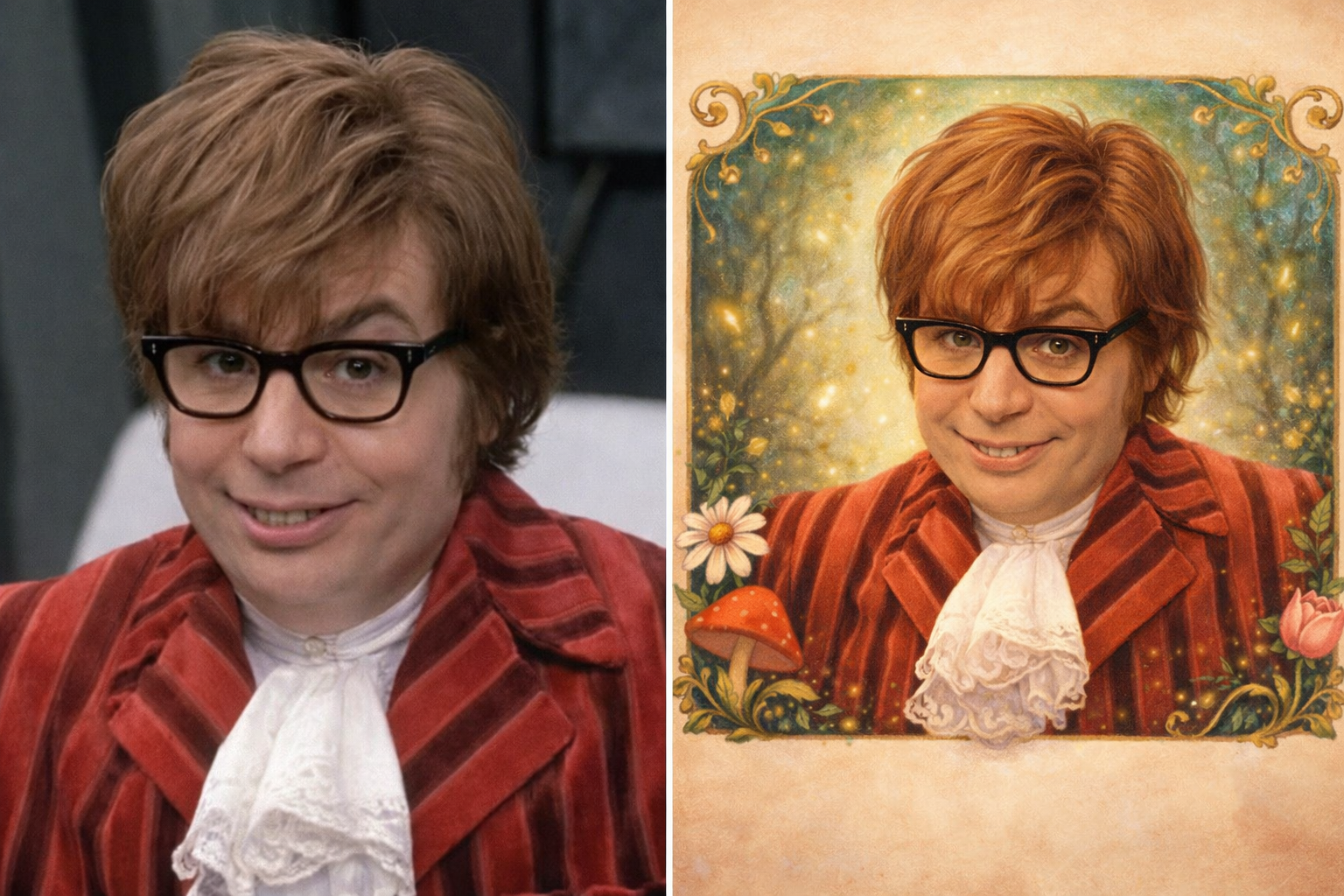
A softer painted illustration prompt for turning the subject into a warm storybook-style character portrait with charm, texture, and a lightly magical feel.
Generate a whimsical storybook-style illustrated portrait from this EXACT IMAGE. Maintain his face, expression, hairstyle, and clothing in a recognizable way while adapting the image into a hand-painted fairytale illustration. Use soft brush textures, gentle lighting, warm colors, clean silhouette design, and subtle magical atmosphere. Keep the result expressive, polished, and clearly illustrated rather than realistic or 3D. Render in 1:1 square format.
Quick tips
This style works best with clear face lighting and a readable pose, because the model needs enough detail to turn the subject into a painterly illustrated character.
Add one short note if you want a specific mood, like "enchanted forest glow," "storybook village," or "golden sunset garden." Short atmospheric notes usually work better than long scene descriptions.
If the result feels too childish, add "keep proportions elegant and balanced." If it becomes too realistic, add "lean further into painted storybook textures and illustration detail."
Blank Preview
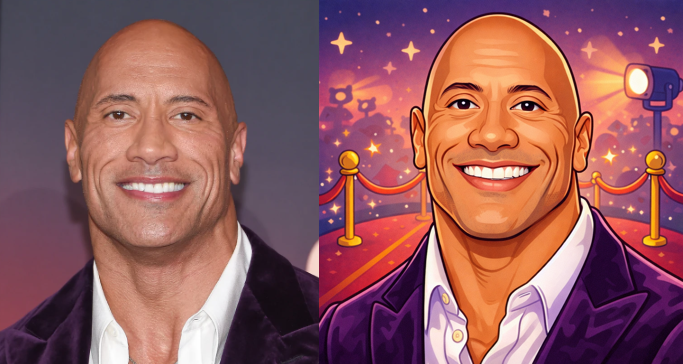
Turns the subject into a bright 2D cartoon with a fully illustrated background, clean outlines, and a playful animated TV-scene feel.
Generate a polished 2D cartoon scene from this EXACT IMAGE. Maintain his face, expression, hairstyle, and clothing details in a simplified but recognizable way. Use bold outlines, clean shape language, smooth cel shading, bright readable colors, and expressive animated proportions without losing likeness. Ensure the full background and environment are also illustrated in the same cohesive cartoon style, with simple textures, playful props, and lively storytelling details. Keep the final result clean, colorful, and fully 2D. Render in 1:1 square format.
Quick tips
This works best with a clear subject, readable outfit colors, and a pose that is easy to simplify into a cartoon drawing. Medium shots usually work better than extreme close-ups.
Add one short setting note if you want more control, like "school hallway," "sunny park," or "messy bedroom." Short scene notes tend to work better than long descriptions.
If the face becomes too generic, add "keep facial likeness close to the original image" or "avoid over-exaggerating facial proportions." Use this when you want a flatter, more playful 2D look instead of a Pixar-style 3D render.
Blank Preview
Your most detailed Pixar scene prompt, including a matching animated-style floor and a cohesive home-interior environment.
Generate a stylized cinematic 3D character render in Pixar-inspired style of this EXACT IMAGE. Maintain his face, expression, hairstyle, and clothing details accurately while slightly enhancing features with smooth skin, expressive eyes, and clean proportions. Use high-quality lighting, soft shadows, and detailed textures. Ensure the entire environment and background are fully rendered in Pixar-style 3D, including the floor, which should match the same warm, stylized wooden or soft-toned animated flooring consistent with a Pixar home interior. Use cohesive colors, soft materials, and simplified shapes across the entire scene. Place him in a cinematic environment with strong storytelling elements and depth of field. Render in 1:1 square format.
Quick tips
This is the strongest all-in scene version, so use it when you want the floor, props, walls, and lighting to all feel designed together. It works especially well for indoor scenes, room concepts, and home-style animated settings.
Keep the main subject clear in the source photo, then add a short room description if needed, like "warm living room," "kid bedroom," or "soft morning kitchen light." Because the floor is already mentioned in the prompt, this version is great for full-scene compositions instead of floating characters.
If the image feels too busy, remove extra custom notes and let the base prompt do the work. Use this when you want the most complete Pixar-style environment without having to build a separate background prompt from scratch.
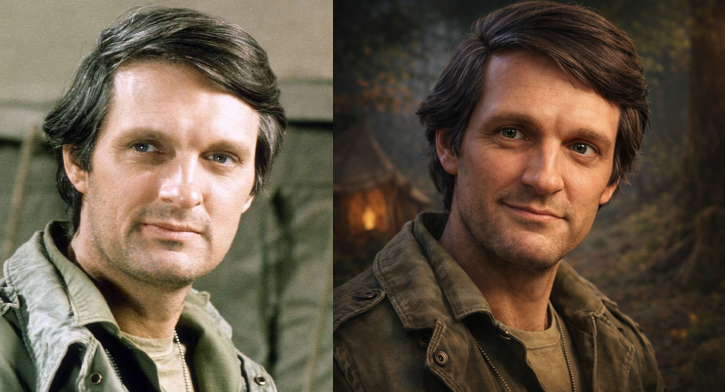
DreamWorks / Shrek-Inspired Fantasy Render
Blank Preview
A fantasy-heavy cinematic render prompt with earthy lighting, organic textures, rougher materials, and a medieval or forest atmosphere.
Generate a stylized cinematic 3D character render inspired by the DreamWorks style seen in Shrek. Maintain his face, expression, hairstyle, and clothing details accurately while adapting features into a slightly exaggerated, more organic fantasy style. Use textured, slightly imperfect skin with natural pores, subtle asymmetry, and expressive, slightly larger eyes. Keep proportions believable but with a touch of caricature realism.

Apply earthy, cinematic lighting with soft shadows and a slightly moody tone. Use detailed materials with a hint of roughness rather than perfectly smooth surfaces. Place him in a rich fantasy-inspired environment with depth of field, atmospheric perspective, and storytelling elements similar to a medieval or forest setting.

Render in high-quality 3D with a 1:1 square format.
Quick tips
Use a source image with a readable pose, visible clothing, and a strong facial expression. This prompt works best when the person can be translated into a fantasy setting without losing the core likeness.
After copying the prompt, you can add one short scene note like "foggy forest path," "medieval village," or "castle courtyard" if you want a more specific fantasy backdrop. Small additions help more than long rewrites, because the prompt already carries a lot of texture and lighting guidance.
If the result becomes too goofy, add "keep the mood grounded and cinematic." If it looks too realistic and loses the fantasy charm, add "lean further into storybook fantasy materials and atmosphere." This is the best option when you want more texture, mood, and roughness than the Pixar prompts give you.